
Business VoIP Caller ID Setup Checklist
Before your Florida business makes a single outbound call on a new or changed VoIP system, every endpoint needs a verified caller ID. Desk phones, mobile apps, browser calling, call queues, shared lines, and forwarded calls can each display a different number or name — and any one of them can silently show the wrong identity, reach a spam label, or confuse the customers you worked hard to earn. This checklist walks office managers, operations leaders, and IT administrators through a structured pre-launch test matrix so nothing ships broken.
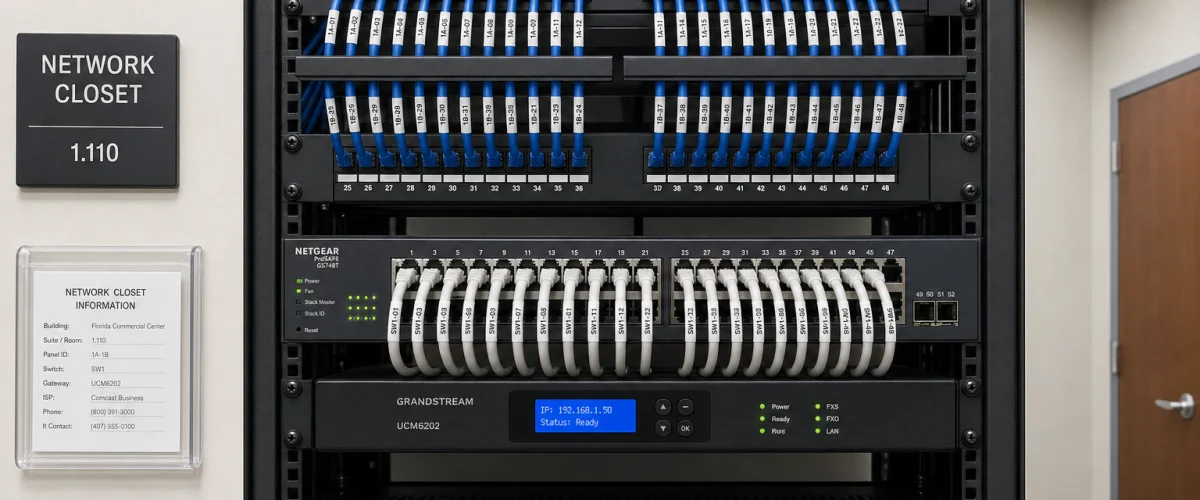
Caller ID setup for business VoIP requires verifying the outbound number and display name on every endpoint type — desk phone, mobile app, browser, queue, shared line, and forwarded call — before going live. Document the intended identity for each role, test calls to multiple carrier destinations, and collect call-log evidence before escalating any spam-label issue to your provider. Configuration problems and third-party spam labels are two different issues that require two different remedies.
- Map every outbound number and display name to a specific role before testing begins.
- Test each endpoint type separately — desk phone, mobile app, browser, queue, shared line, and forwarded call.
- Call at least two different carrier destinations (e.g., a cell phone on one carrier and a landline on another) to catch display-name inconsistencies.
- A spam label is a third-party analytics decision, not a VoIP configuration error — the fix path is different.
- Collect timestamped call logs and screenshots before asking your provider to escalate a spam-label dispute.
- Display names are not guaranteed to appear identically on every receiving carrier or device.

Who This Is For — and Who It Is Not
This guide is for you if:
- You are deploying a new hosted VoIP system for a Florida business and want to verify caller ID before the first live call.
- You recently ported numbers from a legacy carrier or another VoIP provider and need to confirm the outbound identity carried over correctly.
- You added a mobile softphone or browser calling for remote staff and are not sure what number those calls display.
- Your business has received complaints that outbound calls show the wrong name, a different number, or a spam warning.
- You manage multiple locations — Orlando, Tampa, Miami, Jacksonville, or elsewhere in Florida — and need consistent caller ID across all of them.
This guide is NOT for you if:
- You are looking for a service that guarantees spam-label removal — no provider can promise that, because spam labels are applied by third-party analytics companies, not by your VoIP carrier.
- You need branded calling or reputation-remediation services — confirm current feature availability directly with your provider before assuming those are included.
- You are running a residential phone line with no business call volume or multi-user requirements.
Provider Comparison: Caller ID Control by Platform
Not every business phone platform gives you the same level of caller ID control. Here is an honest comparison of what to expect from common options Florida businesses evaluate.
| Platform | Per-User Outbound Caller ID | Mobile App Office Identity | Queue / Shared Line Caller ID | Local Florida Support | Month-to-Month |
|---|---|---|---|---|---|
| Mynians VoIP | Yes — configurable per user or line | Yes — mobile app calls with office number | Configurable per queue | Yes — Winter Garden, FL team | Yes — 30-day notice |
| RingCentral | Yes | Yes | Yes | No local office | Annual contract typical |
| Nextiva | Yes | Yes | Yes | No local office | Annual contract typical |
| AT&T Business | Limited self-service | Varies by plan | Varies by plan | Retail stores, not VoIP specialists | Contract required |
| Legacy PBX / Landline | Fixed — hard to change | Not available | Limited | Depends on local vendor | No |
| DIY Softphone App | Depends on SIP trunk | Depends on configuration | Manual setup required | None | Varies |
Mynians VoIP is priced per licensed user per month — Essential at $22.95 (5-user minimum), Professional at $29.95 (5-user minimum), and Enterprise starting at $39.95 (10-user minimum, final quote required). Standard implementation is $149 for 5–9 licensed users and included for 10 or more. Hardware, taxes, fees, and quoted add-ons are separate.
Why Caller ID Breaks on VoIP Systems
Caller ID on a hosted VoIP system involves at least three layers: what your platform sends, what the terminating carrier accepts, and what the receiving device displays. Problems can appear at any layer.
- Misconfigured outbound identity: A user extension was set up with the wrong number, or the display name field was left blank or set to a default like “User 4.”
- Porting gaps: A number was ported from a previous carrier but the outbound caller ID profile was not updated to match the newly ported number.
- Mobile app default: The softphone app defaulted to a different number than the user’s desk phone — common when mobile calling is added after initial setup.
- Queue or shared line inheritance: A call queue was not assigned its own outbound number, so it inherited a system default that customers do not recognize.
- Display name carrier variation: The name your platform sends may not appear identically on every receiving carrier or device. This is a known limitation of how caller ID name (CNAM) databases work across the public telephone network, not a bug in your VoIP system.
- STIR/SHAKEN attestation: The FCC’s call authentication framework assigns attestation levels to calls. A call that cannot be fully attested may display differently or trigger downstream analytics flags.
The most common caller ID problem we see after a number port is a mismatch between the newly ported number and the outbound caller ID profile that was copied from the old system. The port completes, the number rings in correctly, but every outbound call still shows the old carrier’s number because nobody updated the outbound identity record. Always audit outbound caller ID settings the same day a port completes — do not wait for a customer complaint to find it.

Step 1 — Document the Intended Caller ID for Every Role
Before you test anything, build a simple reference table. For every user, line, queue, and shared number in your system, record:
- Outbound number: The exact 10-digit number that should appear on the recipient’s phone.
- Display name: The business name or department label you want to send. Keep it short — many carriers truncate at 15 characters.
- Endpoint types assigned: Desk phone, mobile app, browser calling, or a combination.
- Queue or shared line membership: If the user is part of a call queue or ring group, note which outbound number that queue is configured to present.
- Forwarding destination: If calls forward to a cell phone or external number, note what caller ID the forwarded call should display to the recipient of the forward.
This document becomes your test baseline. Every test result gets compared against it. If you skip this step, you will not know whether a test failure is a real problem or an intentional configuration choice made by someone else on the team.
Step 2 — Run the Pre-Launch Endpoint Test Matrix
Test every endpoint type before going live. Use the matrix below as your checklist. For each test, call at least two different destinations: one mobile number on a major carrier and one landline or number on a different carrier. Record what the recipient actually sees.
Desk Phone
- Place an outbound call from each physical desk phone.
- Confirm the number displayed matches the intended outbound number in your reference table.
- Confirm the display name matches or is a reasonable truncation of the intended name.
- Repeat for each extension, not just one representative phone.
Mobile App (Softphone)
- Place an outbound call from the mobile softphone app on both iOS and Android if both are in use.
- Confirm the call displays the office number, not the employee’s personal cell number.
- Test on Wi-Fi and on cellular data separately — some apps behave differently depending on the network path.
Browser Calling
- Place an outbound call from the browser-based calling interface.
- Confirm the outbound number matches the user’s assigned identity, not a generic system number.
- Note the browser and operating system used — document this in case a support ticket is needed later.
Call Queues
- Have a test caller join the queue and then be connected to an agent who calls back.
- Confirm the queue’s assigned outbound number appears, not the individual agent’s direct number, if that is the intended behavior.
- If agents are expected to show their direct number when calling back from a queue, verify that setting is active.
Shared Lines
- Place an outbound call from each device sharing the line.
- Confirm all devices on the shared line present the same outbound number.
- Confirm the display name is consistent across devices.
Forwarded Calls
- Forward a call to an external number and check what the forwarding destination sees as the caller ID.
- Depending on your platform configuration, the forwarded call may show the original caller’s number, your business number, or a system number. Confirm this matches your intended behavior and document it.
- Test forwarding to both a cell phone and a landline.
Not sure how your current system is configured? A quick review before launch can catch caller ID mismatches before your customers do. Schedule a free VoIP consultation
Step 3 — Distinguish Configuration Issues from Spam Labels
These are two different problems. Treating one as the other wastes time and leads to the wrong fix.
Configuration Issue
A configuration issue means the wrong number or name is being sent by your VoIP platform. The fix is inside your phone system: update the outbound caller ID field for the affected user, line, or queue. Your VoIP provider can make this change directly. Signs of a configuration issue:
- The number displayed is not the number assigned to that user or line.
- The display name is blank, shows a default label, or shows a different business name.
- The problem appears consistently on every test call from that endpoint.
Spam Label
A spam label — “Spam Risk,” “Scam Likely,” or similar — is applied by third-party analytics companies and downstream carriers based on call behavior patterns. As the FCC explains, caller ID information can be falsified, and carriers use analytics tools to flag numbers that exhibit patterns associated with illegal spoofing or robocalling. Your number can receive a spam label even if you have done nothing wrong — for example, if a previous owner of a ported number had a poor call history, or if your call volume spiked during a campaign launch.
Signs of a spam label rather than a configuration issue:
- The correct number and name are displayed, but a “Spam Risk” or similar warning also appears.
- The label appears on some carrier destinations but not others.
- The problem started after a number port or a period of high outbound call volume.
Spam labels cannot always be removed, and no VoIP provider can guarantee removal because the labels are controlled by third-party analytics companies, not by your carrier. What your provider can do is help you submit a dispute to the relevant analytics platforms — but that process requires evidence.
Step 4 — Collect Evidence Before Escalating
Whether you are escalating a configuration issue or a spam-label dispute, your provider needs specific evidence to act. Collect the following before opening a ticket:
- Timestamped call logs: Export call logs from your VoIP portal showing the outbound number, the destination number, the date and time, and the call duration. Mynians VoIP includes call logs as a standard feature.
- Screenshots of the receiving device: A photo or screenshot of the recipient’s phone screen showing exactly what caller ID appeared, including any spam label. Include the date and time visible on the device.
- Destination carrier information: Note which carrier the test destination uses. Spam labels often vary by carrier, so knowing which carriers are affected helps narrow the dispute.
- Your reference table entry: Show the intended outbound number and display name for the affected line so your provider can compare it against what was actually transmitted.
- Number history if ported: If the number was recently ported, note the previous carrier and the port completion date. A number’s history on the previous carrier can affect its reputation on analytics platforms.
The FCC’s call authentication resources describe how STIR/SHAKEN attestation works at the network level. Understanding attestation levels can help you have a more informed conversation with your provider about why a number may be flagged.

Florida-Specific Considerations
Florida businesses face a few caller ID challenges that are worth calling out specifically.
Number Porting from Legacy Carriers
Many Florida businesses — particularly in the Orlando metro, Tampa Bay, and South Florida markets — are moving off legacy landline or older hosted PBX systems. When a number ports from a legacy carrier to a VoIP platform, the outbound caller ID profile does not automatically transfer. The number arrives, but the display name in the CNAM database may still reflect the old carrier’s record. Plan to update CNAM records after every port and allow time for propagation across carrier databases.
Multi-Location Caller ID Consistency
If your business has offices in Orlando, Winter Garden, Tampa, Miami, or Jacksonville, each location may have its own direct numbers. Decide in advance whether each location should display its own local number or a single main business number. Document that decision in your reference table and verify it on every endpoint at every location before launch.
Hurricane Season and Failover
During hurricane season, calls may route through failover paths — forwarding to cell phones or alternate locations. Test your caller ID behavior on those failover paths specifically. A call that normally shows your main business number may show a different number when it routes through a failover destination. Know what your customers will see before the storm hits.
After-Hours and Auto-Attendant Routing
After-hours routing often forwards calls to on-call staff on personal cell phones. Confirm that forwarded calls in this scenario display your business number, not the on-call employee’s personal number. This is both a caller ID configuration issue and a professional presentation issue.
Mynians VoIP supports Florida business VoIP deployments across the state, with number porting handled end-to-end and call flows configured before your first live call. Our Winter Garden team handles implementation planning, porting coordination, and post-launch support — no national call center, no ticket queue that disappears for a week.
Frequently Asked Questions
Will my display name appear the same on every phone that receives my call?
Not necessarily. Display names are transmitted through CNAM databases, and different receiving carriers pull from different databases on different schedules. The name your VoIP platform sends may appear correctly on some carriers and differently — or not at all — on others. This is a known limitation of how caller ID name works across the public telephone network, not a defect in your VoIP system. Testing calls to multiple carrier destinations before launch helps you understand what your customers are actually seeing.
Can a spam label be removed from my business number?
Sometimes, but not always. Spam labels are applied by third-party analytics companies — not by your VoIP provider — and each company has its own dispute process. Your provider can help you submit a dispute with the relevant platforms, but removal is not guaranteed. The best approach is to collect evidence (call logs, screenshots, destination carrier information) and submit disputes through the analytics companies’ official channels. Maintaining consistent, low-volume, high-answer-rate outbound calling behavior over time is the most reliable way to reduce spam-label risk.
What caller ID does my mobile app show when I call from it?
That depends on how your VoIP platform is configured. Mynians VoIP supports mobile app calling with your office identity, meaning the call can display your business number rather than your personal cell number. However, this must be configured correctly for each user. Test mobile app calls before launch and compare the displayed number against your reference table to confirm the office identity is active.
What happens to caller ID when a call is forwarded to an external number?
It depends on your platform’s forwarding configuration. Forwarded calls can display the original caller’s number, your business number, or a system number — the behavior is a configuration choice, not automatic. Test your forwarding paths specifically and document what the forwarding destination sees. This is especially important for after-hours routing and hurricane-season failover paths.
How does STIR/SHAKEN affect my business caller ID?
STIR/SHAKEN is the FCC-mandated call authentication framework that assigns attestation levels to calls passing through the telephone network. A fully attested call (A-level) means the originating carrier has verified that the caller is authorized to use the number being presented. Lower attestation levels can increase the likelihood that downstream analytics tools flag a call. Working with a VoIP provider that properly registers your numbers and maintains compliant call routing helps support higher attestation levels. You can learn more about call authentication at the FCC’s official call authentication page.
How much does Mynians VoIP cost per user?
Mynians VoIP is priced per licensed user per month. The Essential plan is $22.95 with a 5-user minimum. The Professional plan is $29.95 with a 5-user minimum. The Enterprise plan starts at $39.95 with a 10-user minimum and requires a final quote. Standard implementation is $149 for 5 to 9 licensed users and is included for 10 or more. Hardware, taxes, fees, and quoted add-ons are separate. Service is month-to-month with 30-day cancellation notice.
Caller ID settings depend on a clean extension plan. If you have not mapped extension ranges, naming and shared phones yet, start with the business VoIP extension planning checklist for Florida offices.
Update Log
- October 2026: Created and reviewed for Mynians VoIP business phone system accuracy.
If you are preparing a new VoIP deployment or cleaning up a system that went live with caller ID problems, our Winter Garden team can review your current setup, walk through your endpoint list, and give you a written quote based on your actual licensed-user count — no surprise bills, no national call center. Call us at (407) 374-2782 or use the link below.
