
Set Up Voicemail, Menus & Auto-Attendants on VoIP
If callers are hitting a dead end after hours, bouncing between the wrong extensions, or leaving voicemails nobody checks, your phone system is costing you business. This guide walks Florida office managers and small business owners through exactly how to set up voicemail-to-email, auto-attendants, and call menus on a business VoIP system—without needing an IT department to do it.
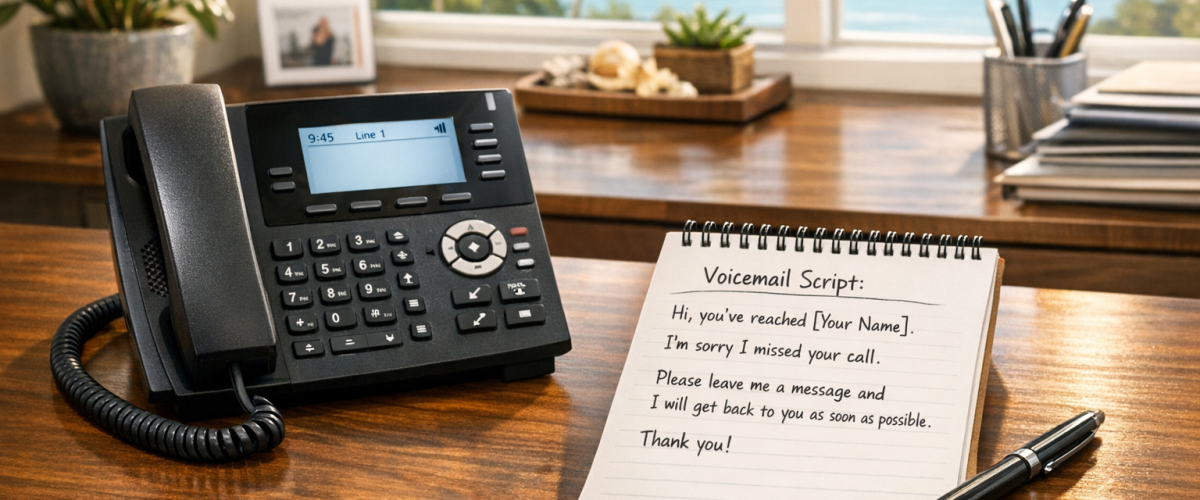
Setting up voicemail-to-email, an auto-attendant, and a call menu on a business VoIP system involves configuring your hosted cloud PBX portal to route inbound calls through a recorded greeting, direct callers to the right extension or department via keypress options, and forward missed-call voicemails as audio attachments to staff email inboxes. On a properly configured system, all three features can be live within hours—not weeks. Mynians VoIP handles this configuration end-to-end for Florida businesses, with plans starting at $22.95 per licensed user per month and no long-term contracts.
- Voicemail-to-email delivers missed-call audio files directly to staff inboxes—no more checking a desk phone for messages.
- An auto-attendant answers every call professionally, even when your front desk is busy or closed.
- A call menu (IVR) routes callers to the right department or extension by keypress, reducing transfers and hold time.
- After-hours routing rules keep Florida businesses reachable—or properly closed—without manual intervention.
- Mynians VoIP configures all of this for you, with local Orlando-based support and plans from $22.95 per licensed user/month, no contracts.
Who This Is For (and Who It Is Not)
This guide is for you if:
- You run a small-to-mid-size Florida business with 5 to 50 employees and a front desk that gets overwhelmed.
- You are moving off a legacy landline or outdated PBX and want a professional call flow without a full IT team.
- You have staff working remotely or across multiple Florida locations (Orlando, Tampa, Miami, Jacksonville, Winter Garden) who need unified call handling.
- Callers are reaching voicemail with no clear instructions, or after-hours calls are going unanswered with no routing plan.
- You want voicemails delivered to email so nothing falls through the cracks.
This guide is NOT for you if:
- You are a solo operator with one line and no need for call routing or departmental menus.
- You already have a fully configured cloud PBX with working auto-attendants and just need minor edits.
- You are looking for a consumer VoIP app rather than a business phone system with failover configured and an outage plan in writing.

VoIP Setup Options Compared
Before diving into configuration steps, here is an honest look at how your main options stack up for a Florida small business that needs voicemail-to-email, auto-attendants, and call menus.
| Option | Setup Time | Local Support | Auto-Attendant Included | Voicemail to Email | Contract | Approx. Cost/Line |
|---|---|---|---|---|---|---|
| Mynians VoIP | 72-hour install (site-ready) | Yes — Orlando-based team | Yes | Yes | Month-to-month | From $22.95 per licensed user |
| RingCentral | Days to weeks (self-serve) | National call center | Yes | Yes | Annual typical | $20–$35+/line |
| Nextiva | Days to weeks (self-serve) | National call center | Yes | Yes | Annual typical | $18–$33+/line |
| AT&T Business | 2–4 weeks typical | Regional, not local | Add-on | Add-on | 1–2 year contracts | Varies widely |
| Legacy PBX / Landline | Weeks to months | Vendor-dependent | Hardware add-on | Limited | Long-term | High hardware cost |
| DIY Softphone App | Hours (self-configured) | None | Rarely | Rarely | None | Low but limited |
Note: Competitor pricing is approximate and subject to change. Confirm exact figures directly with each provider. Mynians VoIP pricing is as published at voip.mynians.com/pricing.
How to Set Up Voicemail-to-Email
Voicemail-to-email converts a recorded voicemail into an audio file (typically MP3 or WAV) and sends it as an email attachment to one or more staff addresses. The caller’s number, timestamp, and duration are included in the email subject line so staff can triage messages without logging into a phone portal.
Step-by-step configuration
- Log into your hosted PBX portal. On a Mynians VoIP system, this is a web-based dashboard accessible from any browser.
- Navigate to the voicemail settings for each extension. Each user or department mailbox has its own configuration.
- Enter the destination email address. You can route to an individual inbox, a shared team inbox, or both.
- Set the notification type. Choose whether to send the audio file as an attachment, a link, or both. Attachment delivery is recommended for staff who need to listen without logging into a portal.
- Record or upload a voicemail greeting. A clear, professional greeting tells callers what information to leave and sets the right expectation for callback time.
- Test the mailbox. Call the extension from an outside line, leave a message, and confirm the email arrives within a minute or two.
Practical example for a Florida office
Consider a five-person accounting firm in Winter Garden. Their front desk extension routes to a shared office manager inbox during business hours. After 5 PM, the auto-attendant (covered in the next section) takes over, and any voicemail left on the main number goes to both the office manager and the senior accountant’s email. No message sits unchecked overnight.
One of the most common problems we see when businesses switch from a legacy system is that voicemail-to-email was never tested end-to-end. The email address was entered correctly, but the spam filter on the receiving mail server was blocking the audio attachments. Always whitelist your VoIP provider’s sending domain in your email security settings before go-live. We walk every Florida client through this step during setup so calls are not lost on day one.
How to Set Up an Auto-Attendant
An auto-attendant is the recorded greeting that answers inbound calls before a human does. It can be as simple as “Thank you for calling ABC Services. Please hold while we connect your call,” or as structured as a full menu with department options. Either way, it gives every caller a consistent, professional first impression—even at 11 PM during a Florida summer storm when your office is closed.
Configuration steps
- Create the auto-attendant in your PBX portal. Assign it to your main inbound number or a specific DID (direct inward dial) number.
- Record your greeting. Keep it under 20 seconds. State the business name, hours if relevant, and what the caller should do next. Use a clear, professional voice—many businesses record this in a quiet conference room or use a professional voice recording service.
- Set the timeout action. If a caller does not press a key within a set number of seconds, the system needs a fallback: ring the front desk, go to a general voicemail, or repeat the greeting. Define this explicitly.
- Assign business hours and after-hours schedules. Your auto-attendant can play a different greeting and route calls differently based on time of day and day of week. This is where after-hours routing lives (covered in detail below).
- Test from an outside line. Call your main number from a cell phone and walk through every option to confirm routing is correct before going live.

After-Hours Routing for Florida Offices
Florida businesses face a specific challenge: hurricane season, unpredictable weather events, and extended summer storms can push staff out of the office with little warning. A properly configured after-hours routing plan keeps your phone system professional and functional whether your team is in the office or not.
Standard after-hours setup
- Business hours schedule: Define your open hours in the PBX portal (for example, Monday–Friday 8 AM–6 PM Eastern). The system automatically switches routing at the defined times.
- After-hours greeting: Record a separate greeting that states your hours and instructs callers to leave a message or call back. Example: “You have reached ABC Services. Our office is currently closed. Our hours are Monday through Friday, 8 AM to 6 PM. Please leave a message and we will return your call the next business day.”
- After-hours voicemail destination: Route after-hours voicemails to the office manager’s email so urgent messages are seen even if someone checks email from home.
- Holiday overrides: Most hosted PBX systems allow you to schedule one-off date overrides for holidays. Set these at the start of each year so the system handles them automatically.
Emergency and weather routing
For Florida businesses that need to stay reachable during a hurricane or office closure, Mynians VoIP supports mobile softphone apps that let staff take calls on their cell phones using the business number. Calls route to mobile devices without exposing personal cell numbers to callers. Failover configuration is part of the Mynians VoIP setup process, tested with you and put in writing rather than expressed as an uptime percentage.
Handling Missed Calls and Extensions for a Small Office
Missed calls are lost revenue. The goal is to make sure every inbound call either reaches a live person or lands in a monitored voicemail—never in a dead end.
Ring groups and hunt groups
A ring group makes multiple phones ring at the same time when a call comes in. A hunt group rings them in sequence (first extension 101, then 102, then 103) until someone answers. For a small Florida office, a ring group on the main number ensures the first available person picks up rather than the call going to voicemail because one person stepped away.
Extension setup for a small team
- Assign each staff member a three- or four-digit extension (e.g., 101 through 110).
- Configure each extension with its own voicemail-to-email so missed calls are tracked individually.
- Set a ring timeout (typically 20–30 seconds) before the call rolls to voicemail or a fallback destination.
- For staff who work remotely or travel between Florida locations, configure their extension to ring both their desk phone and their mobile softphone simultaneously.
Missed-call notifications
Beyond voicemail-to-email, many hosted PBX platforms support missed-call email alerts—a notification that a call came in and was not answered, even if no voicemail was left. This is useful for front-desk coverage gaps and helps managers identify peak call times that may require staffing adjustments.

Common Setup Mistakes and How to Avoid Them
1. No timeout or fallback action defined
If a caller does not press a key and the system has no fallback, the call drops. Always define what happens after 5–10 seconds of silence.
2. Voicemail-to-email blocked by spam filters
Audio attachments from VoIP systems are frequently flagged by corporate email security tools. Whitelist your provider’s sending domain before go-live.
3. Auto-attendant greeting is too long
Greetings longer than 20–25 seconds cause callers to hang up or mash zero. Keep it short, clear, and direct.
4. No after-hours schedule configured
Without a schedule, the system treats every hour the same. Callers at midnight get the same routing as callers at 10 AM—which usually means ringing a desk phone nobody answers.
5. Porting the number without testing first
Number porting—moving your existing business phone number to a new VoIP provider—can go wrong if the losing carrier delays the release or if the new system is not fully configured before the port completes. Mynians VoIP handles number porting end-to-end and coordinates the cutover so your call flow is live and tested before the port date. The FCC provides consumer guidance on porting rights if you encounter resistance from your current carrier.
6. Skipping a test call from an outside line
Internal test calls do not replicate the full inbound path. Always test from a cell phone or outside line before announcing the system is live.
7. No documentation of the call flow
If the person who configured the system leaves, nobody knows how it is set up. Keep a simple diagram or written record of every routing rule, extension assignment, and schedule. Mynians VoIP provides this as part of the setup handoff.
If your Florida business is still running on a legacy phone system, a confusing carrier bundle, or a VoIP setup that was never properly configured, our local Orlando team can fix that. We will review your current bill, map your call flow, and give you a line-by-line quote—no pressure, no contracts required to get started.
Frequently Asked Questions
How long does it take to set up voicemail-to-email, an auto-attendant, and a call menu on a business VoIP system?
On a hosted cloud PBX like Mynians VoIP, all three features can be configured and tested within a few hours once your account is provisioned. For new customers, Mynians VoIP targets a 72-hour install across major Florida markets when the site is ready—meaning your internet connection and network are in place. The configuration itself (voicemail routing, auto-attendant greetings, call menu keypresses) is done through a web portal and does not require on-site hardware work.
Can I keep my existing Florida business phone number when switching to VoIP?
Yes. Number porting transfers your existing business phone number to your new VoIP provider. Mynians VoIP handles number porting end-to-end, coordinating with your current carrier and scheduling the cutover so your call flow is fully configured and tested before the port completes. The FCC requires carriers to release numbers for porting, so your current provider cannot legally block the transfer.
Related: Florida business phone number when switching to VoIP
What happens to calls during a Florida hurricane or power outage?
Because Mynians VoIP is a hosted cloud PBX, your call routing lives in the cloud—not on hardware in your office. If your office loses power, calls can automatically reroute to mobile softphones, a remote extension, or a voicemail box. Mynians VoIP includes failover configuration tested with you before storm season, and puts the outage plan in writing rather than publishing an uptime percentage. Staff can take business calls on their cell phones using the softphone app without exposing personal numbers to callers.
Do I need IT staff to manage the auto-attendant and call menus after setup?
No. The hosted PBX portal is designed for non-technical users. Once Mynians VoIP configures your initial call flow, an office manager can update greetings, adjust schedules, add extensions, and change routing rules through a web browser. For more complex changes, Mynians VoIP’s local Orlando-based support team is available—you are not calling a national call center.
What does a Mynians VoIP consultation include and does it cost anything?
The free consultation includes a review of your current phone bill, a line-by-line quote based on your actual number of lines and features needed, and a walkthrough of how your call flow would be configured. There is no obligation to purchase. You can schedule a consultation at voip.mynians.com/schedule-consultation/ or call (407) 374-2782.
What is the difference between an auto-attendant and a call menu (IVR)?
An auto-attendant is the system that answers your inbound calls automatically with a recorded greeting. A call menu (also called an IVR, or Interactive Voice Response menu) is the layer of keypress options within that greeting—Press 1 for Sales, Press 2 for Support, and so on. The auto-attendant is the container; the call menu is the routing logic inside it. Both are configured together in your hosted PBX portal.
Update Log
- July 2026: Created and reviewed for Mynians VoIP business phone system accuracy.
